Most sync advice starts with the delay key in your player. That fixes one kind of problem and leaves you pressing it every five minutes for the other two. Work out which problem you have first. The fix follows from that.
Work out which sync problem you have
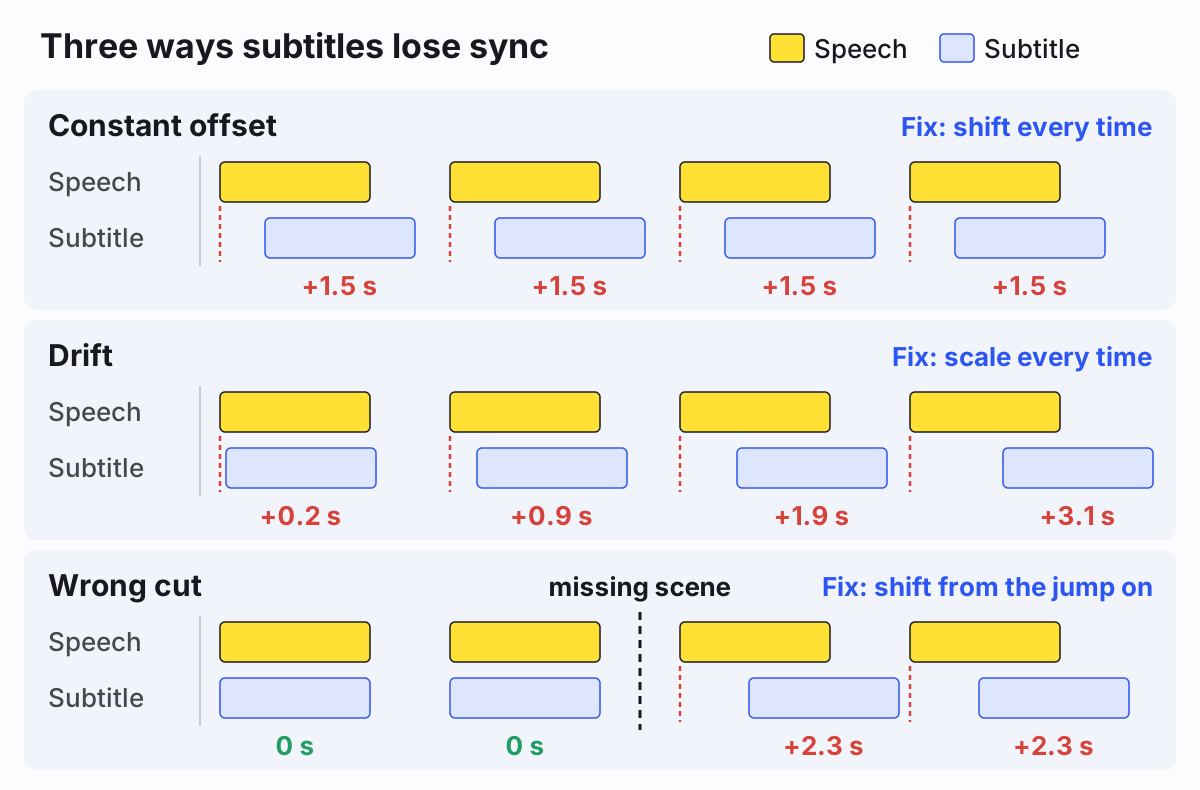
Play a line of dialogue in the first few minutes and note how far the subtitle is from the voice. Then jump to somewhere near the end and do the same. Two numbers are enough to tell the three cases apart:
| Early in the video | Near the end | What it is |
|---|---|---|
| 1.5 s late | 1.5 s late | Constant offset |
| 0.2 s late | 2 minutes late | Drift, usually a frame rate mismatch |
| In sync | 12 s late, from one scene onward | A different cut of the video |
Subtitles that appear before anyone speaks are the same problems in the other direction. The file is timed to a version of the video that runs faster than yours, or has less footage before that point.
Why subtitles drift: frame rates
An SRT file doesn't store frames. It stores clock times, like 00:45:30,500. So the frame rate of your video only matters
when the file was timed against a release that runs at a different speed from yours. The classic case is a film shot at 24 fps
(23.976 fps on NTSC-era video, really 24000/1001) that was released in Europe at 25 fps. PAL transfers play every
frame faster, so the film runs about 4% short. Steinberg's
notes on film transfers to PAL video explain the speed-up.
The ratio between the two speeds is 25 ÷ 23.976 = 1.0427. A 2-hour film at 23.976 fps runs 1:55:05 at 25 fps. Play subtitles timed for the 23.976 release against the 25 fps video and each line shows up late by 4.27% of how far into the video it is: 2.6 seconds late after one minute, and 2 minutes 34 seconds late after an hour. That's why it feels fine at the start and useless by the middle.
Other pairs drift more slowly. 24 against 25 fps is 4.17%. 29.97 against 30 fps is 0.1%, about 3.6 seconds per hour, which you might not notice until the last reel.
Wrong cut: when the gap jumps
If the subtitles are perfect for twenty minutes and then suddenly late, you have a different edit of the video: an extended cut, a TV version with a scene removed, a recording that includes an ad break, or a release with extra studio logos at the start. Logos at the start just add an offset. A missing or added scene in the middle adds a jump, and every line after it is off by the length of that scene. There may be several jumps, and each one needs its own fix.
Quick fix while you watch: the player's delay keys
For a constant offset, the player can fix it on the spot. In VLC on Windows and Linux, press G to show subtitles 50 ms earlier and H to show them 50 ms later (see VideoLAN's hotkeys page). On a Mac the default keys are H (earlier) and J (later). For a big offset, type the value into Tools, then Track Synchronization (Window, then Track Synchronization on a Mac) instead of pressing a key forty times.
The delay isn't saved to the subtitle file, and it can't fix drift or a jump: you'd be chasing the gap all film. Our full guide to loading and syncing subtitles in VLC covers the menus on each platform.
How to fix subtitle timing in the file for good
An SRT is plain text, so you can rewrite every timestamp and save a corrected copy (keep the original). If the format is new to you, our guide to SRT files goes through it line by line.
Constant offset: shift every timestamp
Say the subtitles are 1.5 seconds late all the way through. Subtract 1.5 seconds from every start and end time. Here are two cues before the fix:
47
00:03:12,400 --> 00:03:15,050
You said the train left at nine.

48
00:03:15,300 --> 00:03:17,900
It did. I wasn't on it.
And after. 3:12.400 minus 1.500 is 3:10.900, and so on for every time in the file:
47
00:03:10,900 --> 00:03:13,550
You said the train left at nine.

48
00:03:13,800 --> 00:03:16,400
It did. I wasn't on it.
Doing that by hand across 1,500 cues is miserable, so use a tool. In Subtitle Edit (free and open source, for Windows, macOS and Linux), open the file and choose Synchronization, then Adjust all times, enter 1.5 seconds and click Show earlier.
Drift: scale every timestamp
Drift needs a multiplication, not a shift. Pick two lines far apart, ideally one near the start and one near the end. For each, write down the time in the subtitle file and the time the line is actually spoken in your video. Pause the player to read it. In this example:
- Line A is at 00:01:10.000 in the file and spoken at 00:01:07.133 (67.133 s).
- Line B is at 01:40:02.000 in the file (6002 s) and spoken at 01:35:56.164 (5756.164 s).
The ratio is the distance between the two spoken times divided by the distance between the two file times: k = (5756.164 − 67.133) ÷ (6002 − 70) = 0.95904. Then work out what's left over as a plain shift: b = 67.133 − 0.95904 × 70, which comes to almost exactly 0. Every new time is old time × k + b.
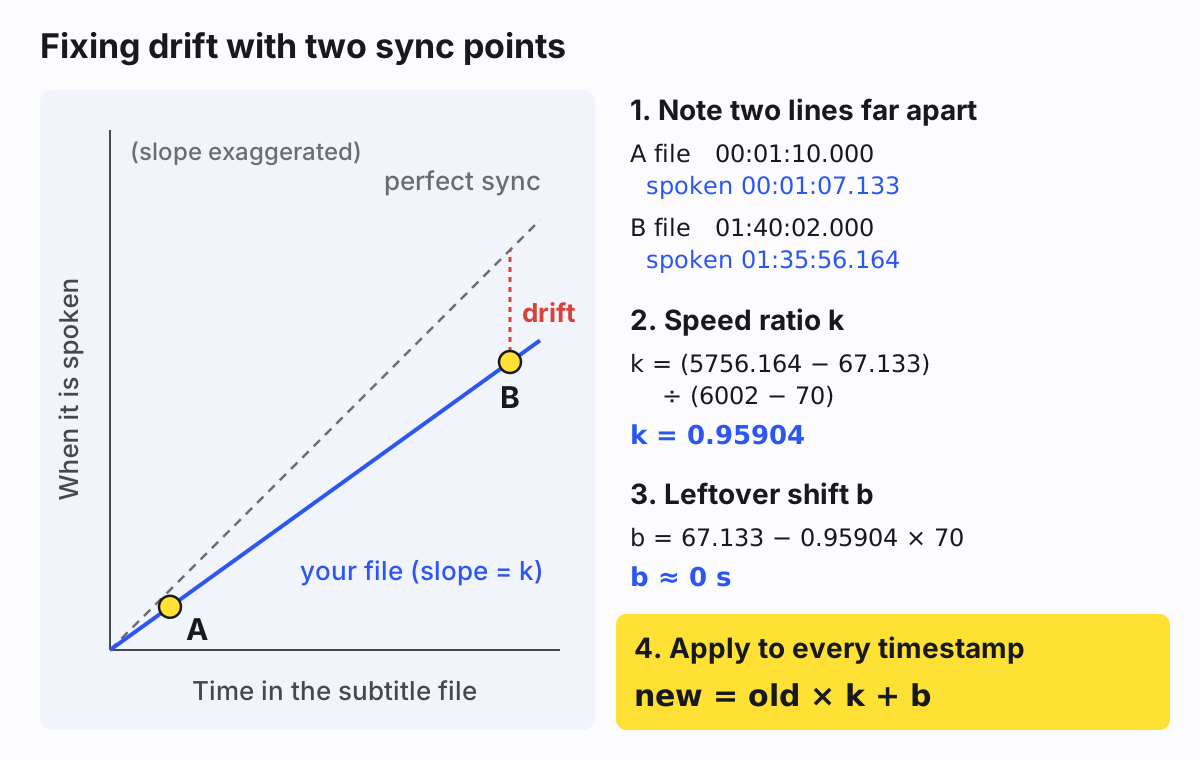
Look at k: 0.95904 is 23.976 ÷ 25. The numbers just told you the cause. The file was timed to a 23.976 fps release, you have a 25 fps one, and b ≈ 0 means there's no extra offset on top. A line from the middle of the file now lands where it should:
612
00:45:30,500 --> 00:45:33,900
I told you. I was at the station.

becomes

612
00:43:38,661 --> 00:43:41,922
I told you. I was at the station.
If k comes out as 1.0427, it's the same mismatch the other way round. If k is close to 1 and b isn't, you had an offset, not drift. A k that matches no common frame rate usually means a sloppy measurement or a cut in between, so check a third line in the middle.
In Subtitle Edit, Change frame rate does the frame-rate case directly (From frame rate 23.976, To
frame rate 25). Visual sync does the two-point method with the video in front of you, so you
don't have to calculate anything. If you'd rather script it, this Python does the same math on an SRT. Set K and B, then run
python3 retime.py in.srt out.srt:
import re, sys

K = 0.959041   # speed ratio (use 1 for a plain shift)
B = 0.0        # shift in seconds (negative = earlier)

def fix(m):
    h, mi, s, ms = map(int, m.groups())
    t = max(0.0, K * (h * 3600 + mi * 60 + s + ms / 1000) + B)
    ms = round(t * 1000)
    return f"{ms // 3600000:02}:{ms // 60000 % 60:02}:{ms // 1000 % 60:02},{ms % 1000:03}"

text = open(sys.argv[1], encoding="utf-8-sig").read()
text = re.sub(r"(\d{2}):(\d{2}):(\d{2}),(\d{3})", fix, text)
open(sys.argv[2], "w", encoding="utf-8").write(text)
Wrong cut: fix one section at a time
Find the first line where the gap jumps. Select it and every line after it, and shift only those. Subtitle Edit's Adjust all times window has an option for exactly that, selected lines and forward. Repeat at each jump. With many jumps, Point sync lets you set the correct time on several lines and recalculates the ones between them.
Or skip the math: time captions from your own audio
All of the above assumes the file was right for some version of the video. If the video is yours (a talk, a lesson, an interview), it's often faster to make fresh captions timed to its actual audio. Our SRT generator sends only a compressed audio track to a Whisper speech model, gets a timestamp for every word (how that works is in our look at Whisper transcription accuracy), and builds the cues from those, so there's no offset or drift to fix. It's the same engine as our auto captions tool. You proofread the words and download an SRT or VTT.
It handles videos up to 30 minutes, and visitors get 20 minutes of transcription a day, so this is for your own shorter videos, not a feature film. It doesn't translate either. If you already have a nearly right SRT, load it with the video into the burn-in tool: click a line to nudge its start and end against the picture, then download the corrected file or a video with the subtitles burned in. Once the timing is right, our subtitle guidelines cover how long each line should stay on screen.
Stop it from happening again
- Keep subtitles with the exact release they were made for, and put the frame rate or edition in the file name.
- If you trim the start of a video after making captions, everything shifts by the amount you trimmed. Make captions last, or shift them by that amount.