The steps below are for VLC 3.0 on Windows, macOS and Linux (3.0.24 is the current download at the time of writing, October 2026). The Windows and Linux versions share the same menus. The Mac version names a few things differently and uses different keys for the subtitle delay, which catches a lot of people out. Menu names were checked against VideoLAN's subtitle documentation and VLC's own interface.
How to add subtitles to VLC
From the menu
- Open the video and let it start playing.
- On Windows or Linux, choose Subtitle, then Add Subtitle File. On a Mac, choose Subtitles, then Add Subtitle File.
- Pick the .srt, .vtt, .ass or other subtitle file. It shows up straight away.
Add Subtitle File does nothing until a video is playing, so start the video first. If you'd rather choose the subtitles before playback on Windows or Linux, go to Media, then Open Multiple Files, tick Use a subtitle file and browse to it.
Drag and drop
While the video plays, drag the subtitle file from your file manager onto the VLC window. VLC adds it as a subtitle track instead of opening it as a new video. This works on all three platforms and it's the quickest way to try a few candidate files one after another.
Let VLC load them automatically
VLC looks for subtitle files when a video opens. With the default settings, it loads a file whose name is the full video name, or the
full name with extra text after it (a language code, say), from the same folder or a subs or subtitles
folder next to the video. Capital letters don't matter, and dots, dashes and spaces count as the same thing.
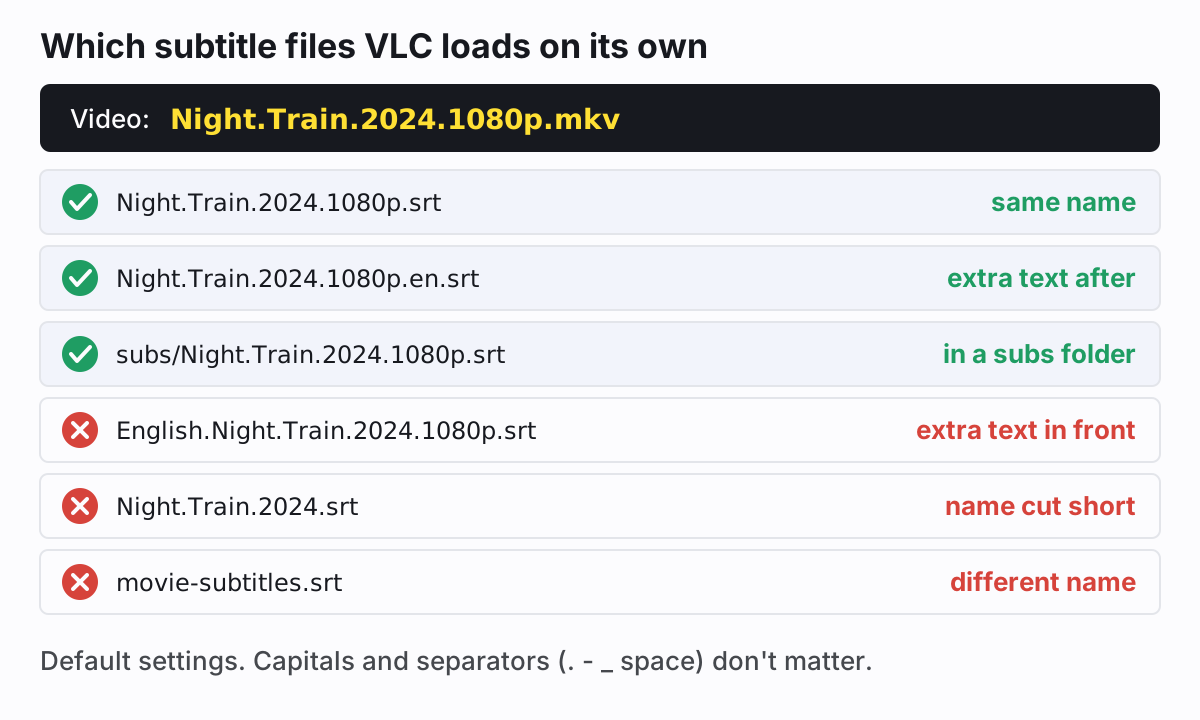
The shortened name is the one that trips people up. Downloaded subtitles are often named after the film rather than your exact file,
so Night.Train.2024.srt sits next to Night.Train.2024.1080p.mkv and never loads. Rename it to match, or
add it by hand. The rules come from VLC's "Subtitle autodetection fuzziness" setting, which defaults to level 3 in
VLC's source. You can change it under Tools, then Preferences: switch Show settings to All,
then open Video, then Subtitles / OSD.
Choose or switch the subtitle track
MKV and many MP4 files carry their own subtitle tracks, often several languages. Whether one is on when playback starts depends on how the file flags its tracks and on your preferred subtitle language in Preferences. To pick one, choose Subtitle, then Sub Track on Windows and Linux, or Subtitles, then Subtitles Track on a Mac. Files you added yourself appear in the same list.
From the keyboard, V cycles through the tracks on Windows and Linux, and S does it on a Mac. Shift+V (Shift+S on a Mac) switches subtitles on and off.
Fix the VLC subtitle delay
If every line is early or late by the same amount, the delay keys fix it while you watch. Each press moves the subtitles by 50 ms, and VLC shows the new value on the video, for example "Subtitle delay 250 ms".
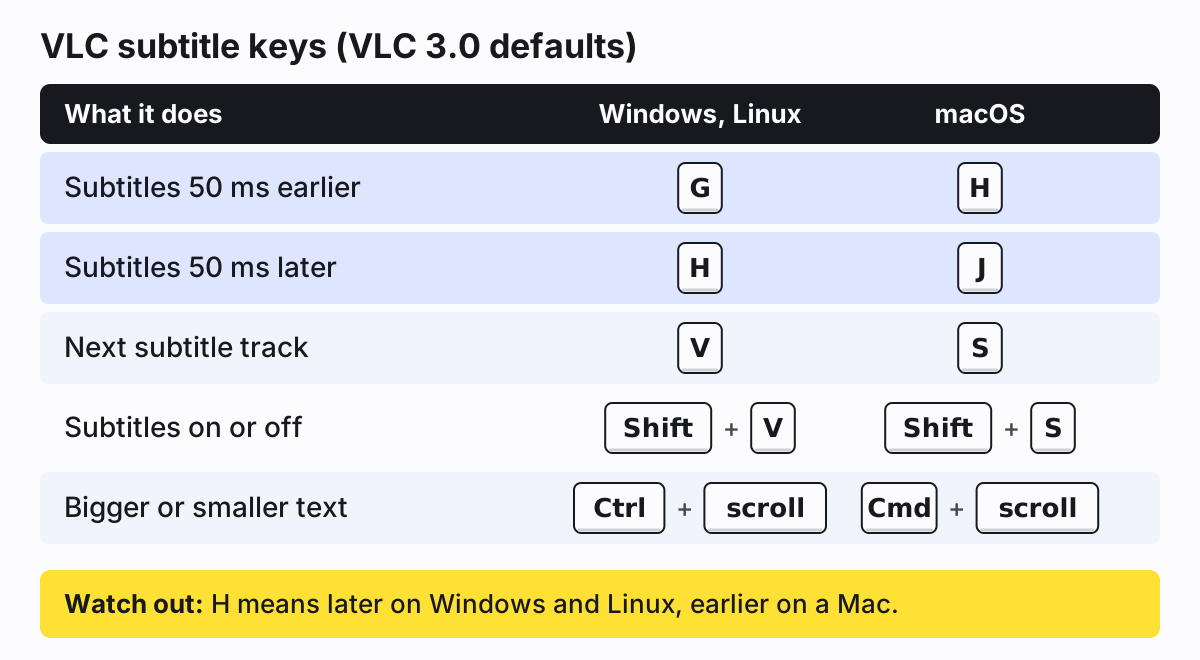
The Windows and Linux keys are on VideoLAN's hotkeys list. The Mac defaults (H and J) are in VLC's source and noted on the wiki's subtitle delay page. If you've changed your hotkeys, check them under Tools, then Preferences, then Hotkeys (on a Mac, VLC media player, then Preferences, then Hotkeys).
For a large offset, don't tap a key sixty times. Open Tools, then Track Synchronization (Window, then Track Synchronization on a Mac) and type the value into Subtitle track synchronization. A positive value shows subtitles later (VLC labels it Delayed), a negative one earlier (Hastened).
There's also a trick for late subtitles that saves the guessing. When you hear a distinctive line, press Shift+H. When the matching subtitle appears, press Shift+J. Then press Shift+K and VLC applies the difference. Ctrl+Shift+K (Cmd+Shift+K on a Mac) resets it.
The delay isn't saved into the subtitle file, and it can't fix subtitles that drift further out as the film goes on. That's usually a frame rate mismatch between two releases. Our guide to subtitles that are out of sync shows how to tell drift from an offset and fix the file permanently.
Change subtitle size, font and encoding
The quick way: hold Ctrl (Cmd on a Mac) and scroll while the video plays to make the text bigger or smaller. On Windows and Linux, Ctrl+0 resets it.
For settings that stick, go to Tools, then Preferences, then Subtitles / OSD on Windows and Linux. On a Mac, open the VLC media player menu, then Preferences, then Subtitles / OSD. You'll find:
- Font and Font size, plus font color, outline and a background box.
- Default encoding, which matters when accented or non-Latin letters come out as junk. If a Russian SRT shows nonsense, for example, try Cyrillic (Windows-1251) here.
- Enable subtitles, and a preferred subtitle language.
Save, then stop and restart the video: font changes don't apply to a video that's already playing. Mac users also get Text Size, Text Color, Outline Thickness and Background Opacity directly in the Subtitles menu, which is quicker than digging through Preferences. These settings work on text subtitles. Picture-based subtitles like DVD and VobSub tracks can't be restyled.
VLC subtitles not showing? Check these
- Check that a track is selected. Open Subtitle, then Sub Track (Subtitles, then Subtitles Track on a Mac). If Disable is ticked, pick a track.
- Make sure subtitles aren't switched off in Preferences. Under Subtitles / OSD, make sure Enable subtitles is ticked. VideoLAN's docs point here for turning subtitles off by default, so it's easy to have done it once and forgotten.
- If nothing loads by itself, the file probably isn't named to match. See the naming rules above, or add it by hand.
-
Look for a hidden .txt ending. Windows hides extensions by default, so
movie.srtcan really bemovie.srt.txt. Turn on file extensions and rename it. - Clear any leftover delay. A delay of a few minutes puts every line far from its speech, which looks like no subtitles. Reset it in Track Synchronization or with Ctrl+Shift+K.
- Consider that the file was timed for another video. Subtitles from a different cut may start minutes away from where you're watching. Skip ahead and see if lines appear.
- Rule out a broken file by opening it in a text editor. An SRT needs a number, a timing line and text for each block, with a blank line between. Our SRT file guide lists the mistakes that stop a file from loading.
You may still read that VLC can't play WebVTT. That's out of date. The VLC 3.0 release notes list a rewrite of WebVTT support with CSS styling, so a .vtt should load like an SRT. If you're curious what's inside one, see our explainer on VTT files, and for how the other formats compare, our overview of subtitle file types.
When VLC isn't where the video will be watched
VLC reads a subtitle file sitting next to the video. Send that video to a phone, a TV's USB player or a social feed and the subtitles often don't come along. If they have to show everywhere, burn them into the picture: our burn-in tool takes your SRT or VTT with the video, lets you style the text, and renders a new video in your browser (MP4, or WebM in browsers that can't encode MP4).
And if you have a video with no subtitle file at all, our SRT generator makes one from the audio for videos up to 30 minutes. Name the result after your video and VLC loads it by itself.