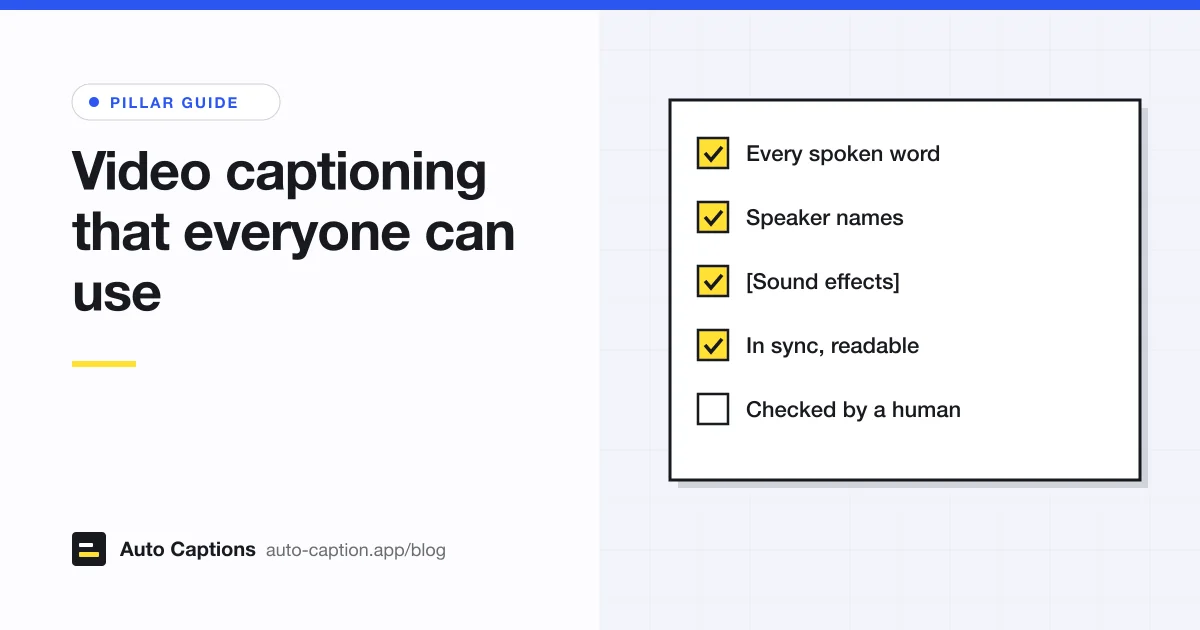
Most advice about captions is about looks: fonts, colors, the bouncing word. That matters for reach. But captions were made for people who can't hear the audio, and for them the question is simpler. Can I follow this video with the sound off? This guide covers what that takes and what the accessibility standards actually say, then ends with a checklist you can run on your next video.
What good captions include
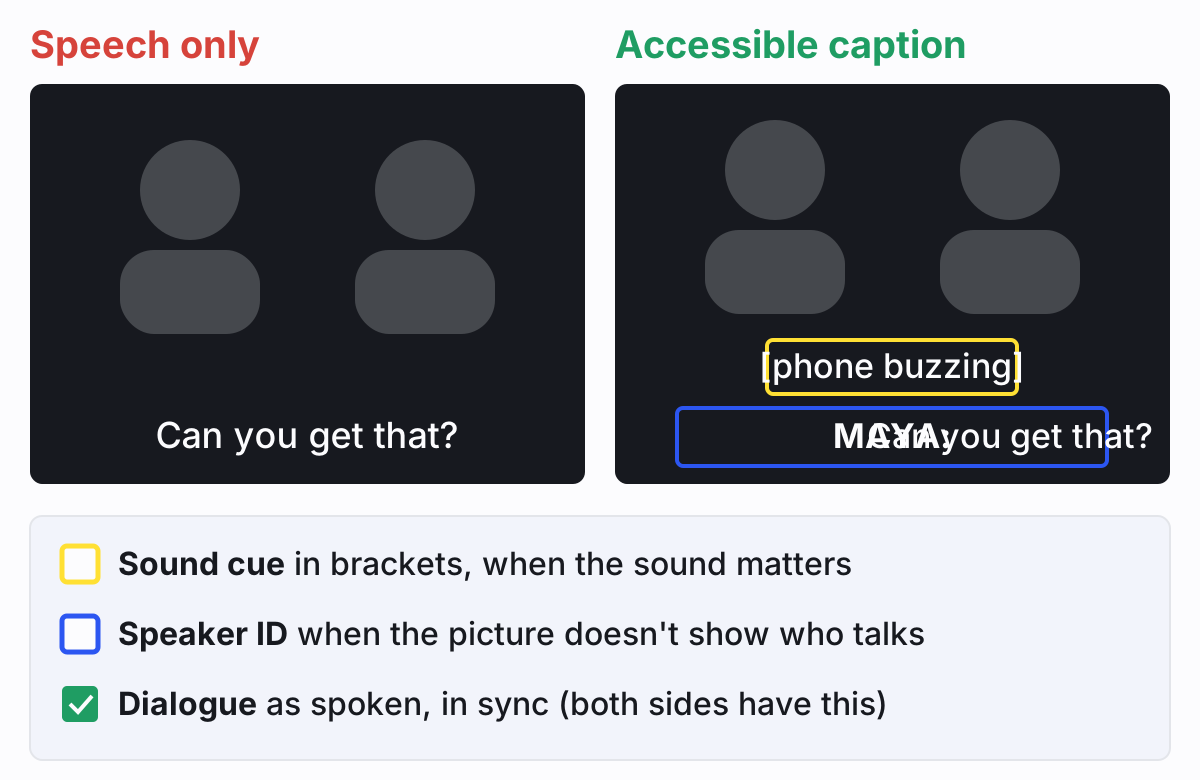
W3C, the group behind the web accessibility standards, describes captions as a text version of the speech and non-speech audio needed to understand the content. In practice that breaks down into three parts.
Dialogue
Every word that matters, as it was said, appearing while it's said. Clean up obvious stumbles if you like ("um", a restarted sentence), but don't paraphrase. A viewer who lip-reads a little will notice when the text and the mouth disagree.
Speaker identification
Label the speaker when the picture doesn't make it obvious: a narrator, a voice off camera, someone on a phone, two people in a wide shot. A name in capitals or followed by a colon ("MAYA:") is the common style. One person talking to camera needs no label at all.
Sound cues
Describe sounds that change what the viewer understands: [phone buzzing], [door slams], [laughter], [music stops]. Square brackets are the usual convention. Skip sounds that carry no meaning. If background music sets a mood, a short cue like [tense music] at the start is enough. If the lyrics matter, caption them.
Closed captioning guidelines: what WCAG says
The Web Content Accessibility Guidelines (WCAG) are the standard most schools, public bodies and companies point to. Two of its success criteria deal with captions.
Success Criterion 1.2.2, Captions (Prerecorded) is Level A, the baseline. It reads: "Captions are provided for all prerecorded audio content in synchronized media." W3C's explanation says captions should include dialogue, identify who is speaking, and include meaningful sound effects. There is one exception: a video that is itself an alternative to text already on the page, and clearly labeled that way.
Success Criterion 1.2.4, Captions (Live) is Level AA and covers live streams and webcasts. W3C notes it was written with broadcast-style media in mind. It doesn't require captions on every two-way video call, and where captions are needed on a call, W3C puts that on the host rather than the app.
Neither criterion says captions must be closed. W3C lists open captions (burned into the picture) and closed captions (a track the viewer switches on) as valid ways to pass. Neither sets a font or a line length either. For that, look at style guides like the ones in our guide to subtitle guidelines and reading speed.
US broadcast television has its own rules. In 2014 the FCC adopted caption quality standards that ask for captions to be accurate, synchronous, complete and properly placed. Those rules apply to TV programs, not to a clip on your website. They still make a good definition of quality.
Automatic captions are a first draft
Speech recognition is good now. It still isn't finished captioning. W3C's captions guidance is blunt: automatically generated captions don't meet accessibility requirements unless they're confirmed to be fully accurate, and usually they need significant editing. In its example, "4 to 5 minutes" becomes "45 minutes" and "should not preheat" becomes "should know to preheat". Every word is a real word. Both instructions are now wrong.
That's the pattern to watch for. Machine errors tend not to look like typos. They look like real words in the wrong place: a name spelled the way it sounds, a number off by a digit, a "not" that went missing. Our guide to how Whisper AI transcription works and where it slips goes through the common error types one by one.
Most speech engines, Whisper included, don't add speaker names or sound cues either. That part is on you.
How to review a machine transcript
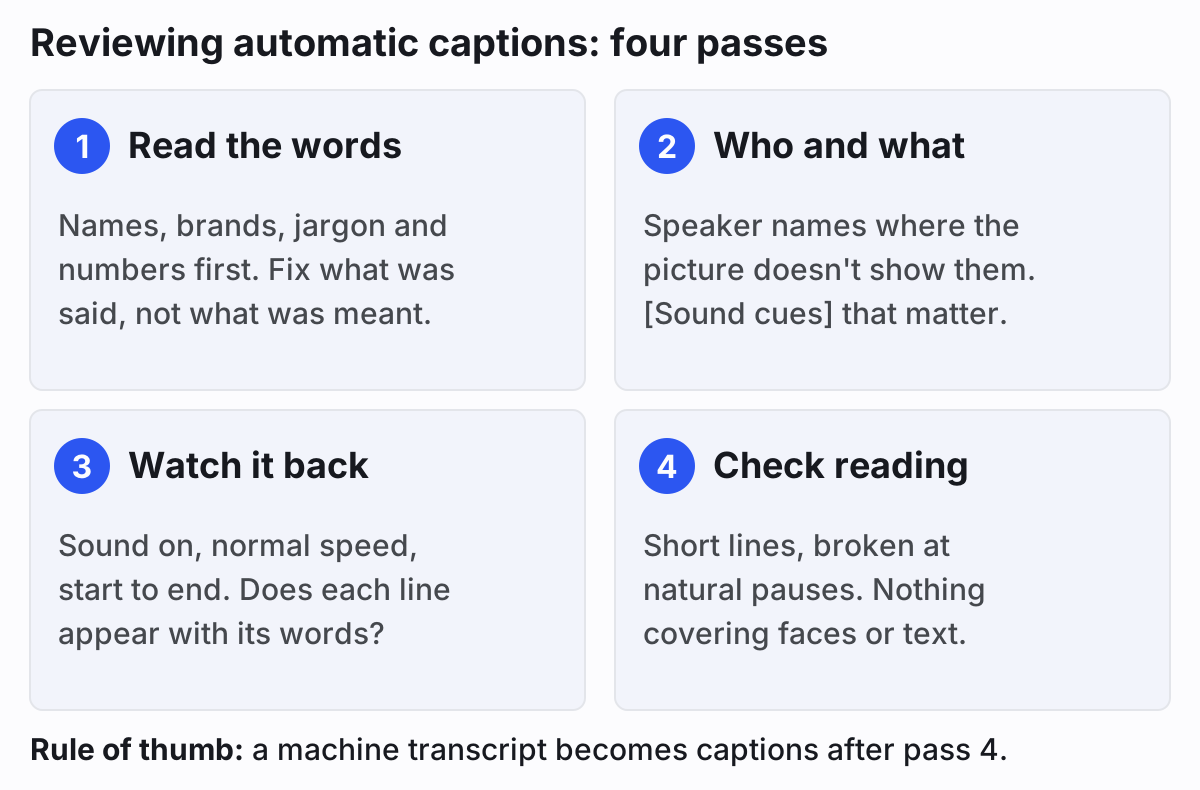
- Read the whole transcript once, looking only for names, brand names, jargon and numbers. These are where the errors cluster. Keep the video's script or show notes open if you have them.
- Go through again and add speaker labels and sound cues. Ask at each line: would someone who can't hear know who said this and what just happened?
- Watch the video from start to finish, sound on, at normal speed. You're checking timing now. Each line should appear as the words start and leave soon after they end.
- Look at the lines on the picture. Break long lines at natural pauses, and move captions if they cover a face or on-screen text.
Captioning best practices: a checklist
Run this before you publish. If a line fails, fix it and move on.
- Every spoken word is there, including the quiet ones at the start and end of the video.
- Names, product names and technical terms are spelled right.
- Numbers, dates and prices match what was said.
- Negatives survived. "Can" and "can't" sound close, and a dropped "not" flips the meaning.
- Speakers are labeled wherever the picture doesn't make it obvious.
- Sounds that matter have a bracketed cue. Sounds that don't are left out.
- Each caption appears with its speech, not a second early or late.
- Lines are short enough to read in the time they're on screen: one or two lines, broken at natural pauses.
- Captions don't cover faces, lower thirds or on-screen text.
- Text contrasts with the video behind it. A dark outline or box helps on busy footage.
- Someone watched the final export from start to finish.
Open or closed?
Both can be accessible. The choice is about where the video goes. Social feeds often autoplay muted and many don't support a caption track, so captions need to be in the picture there. YouTube, Vimeo, course platforms and your own site support closed captions, which viewers can resize or turn off. Often the answer is both from one transcript. The full comparison is in our guide to open vs closed captions.
Captioning a video on different platforms
The rules above don't change by platform, but the steps do. We have separate walkthroughs for adding captions to a video on an iPhone, for captioning Facebook videos (where you can upload a caption file or burn the text in), and for Zoom's live captions and meeting recordings, which work differently from anything you edit yourself.
How to caption a video with our tool
Our auto caption generator handles the typing and the timing. The judgment calls stay with you, which is how it should be.
- Open your video (MP4, MOV or WebM, up to 30 minutes). It opens in your browser and isn't uploaded.
- Start transcription. Only a compressed audio track goes to the speech model. Visitors get 20 minutes of transcription a day, free, so a longer video needs to be trimmed or split first.
- Click any line to fix words, then type in speaker names and [sound cues] where they belong. The tool doesn't add these itself.
- Nudge start and end times, and split or merge lines until every caption reads well against the video.
- Export an SRT or VTT to upload as closed captions, or render an MP4 with the captions burned in. Or both.
If a video already has a caption file, you can load the SRT or VTT with it instead of transcribing, then restyle and burn it in.